MiPos Integration (Product Search)
The MiPos tool allows your AI Agent to access your product database directly on MiPos to search, quote, and send product information to customers during conversations.Implementation Process
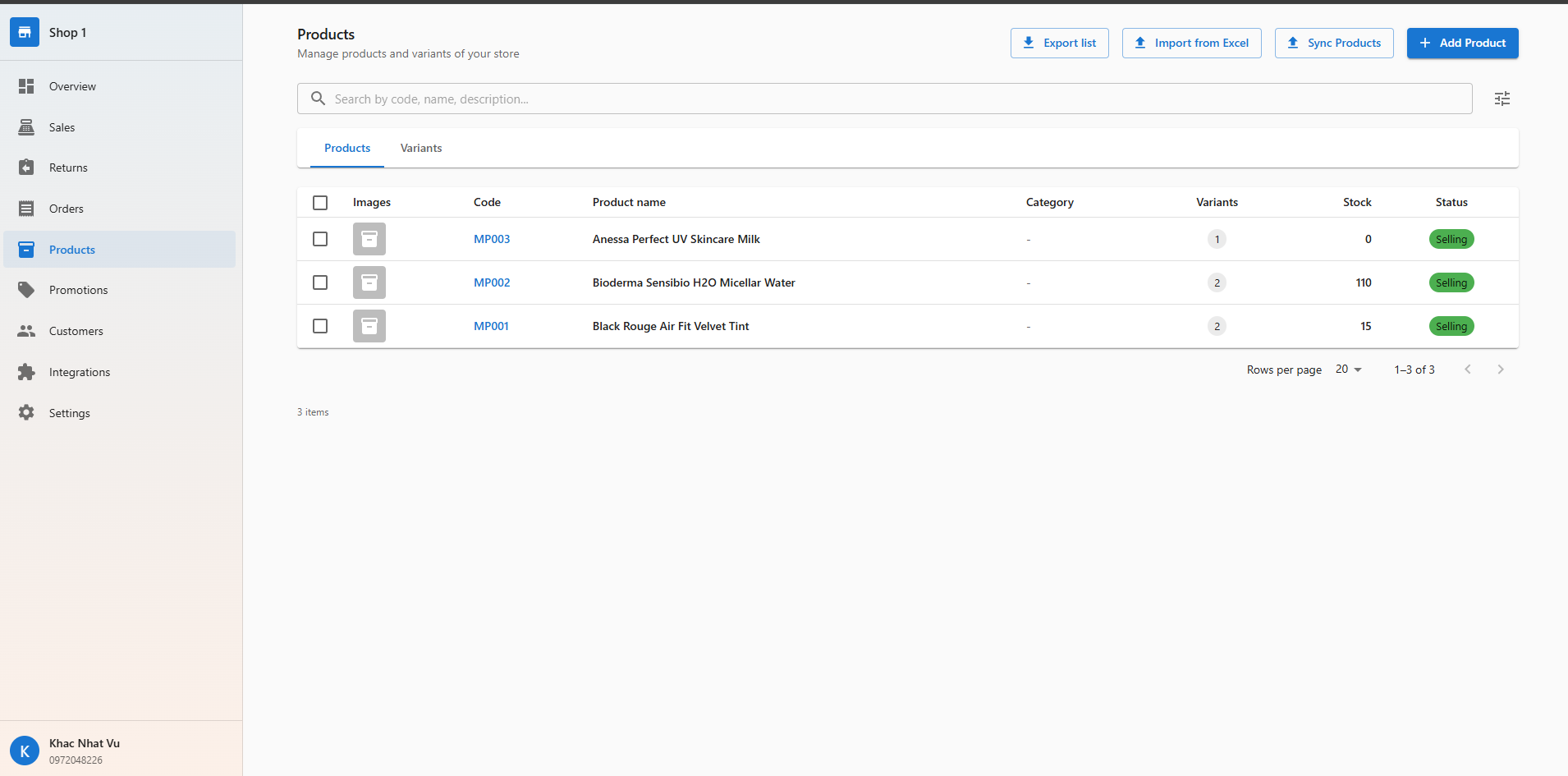
Step 1: Prepare Data on MiPos
First, ensure you have an account and products on the MiPos system.- Register and log in to the MiPos admin page.
- Create a new Shop (Store).
- Add all products to that Shop (ensure fields like Name, Price, and Images are filled).
Step 2: Add MiPos Tool to Agent
Return to the AIHive Studio interface to connect.- Select the Agent you want to integrate -> Go to the Configuration tab.
- Scroll down to the Tools / CRM, ERP Integration section.
- Click the + Add button.


Step 3: Configure Connection (API Key)
For the Agent to “communicate” with your Shop, you need to provide the connection key.- After adding the tool, click the Settings icon (⚙️ or ℹ️) next to the MiPos tool.
- An input form appears requesting 2 parameters:
- API Key: Security key.
- Shop ID: Store identifier.

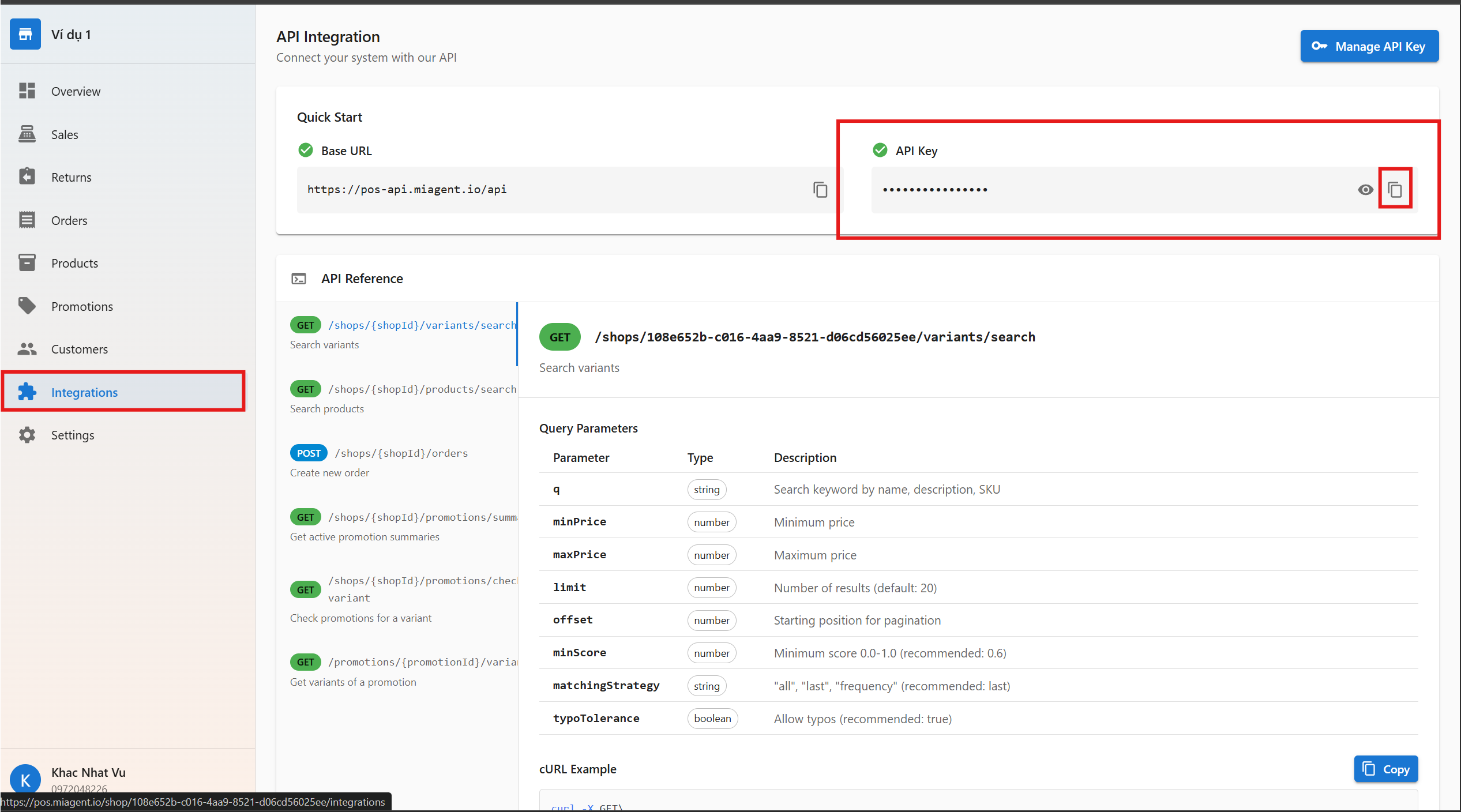
💡 How to get this information:
- Open the MiPos admin page in a new tab.
- Go to Settings (or API Developer section).
- Copy the
API KeyandShop ID.- Paste them back into the AIHive Studio configuration form.

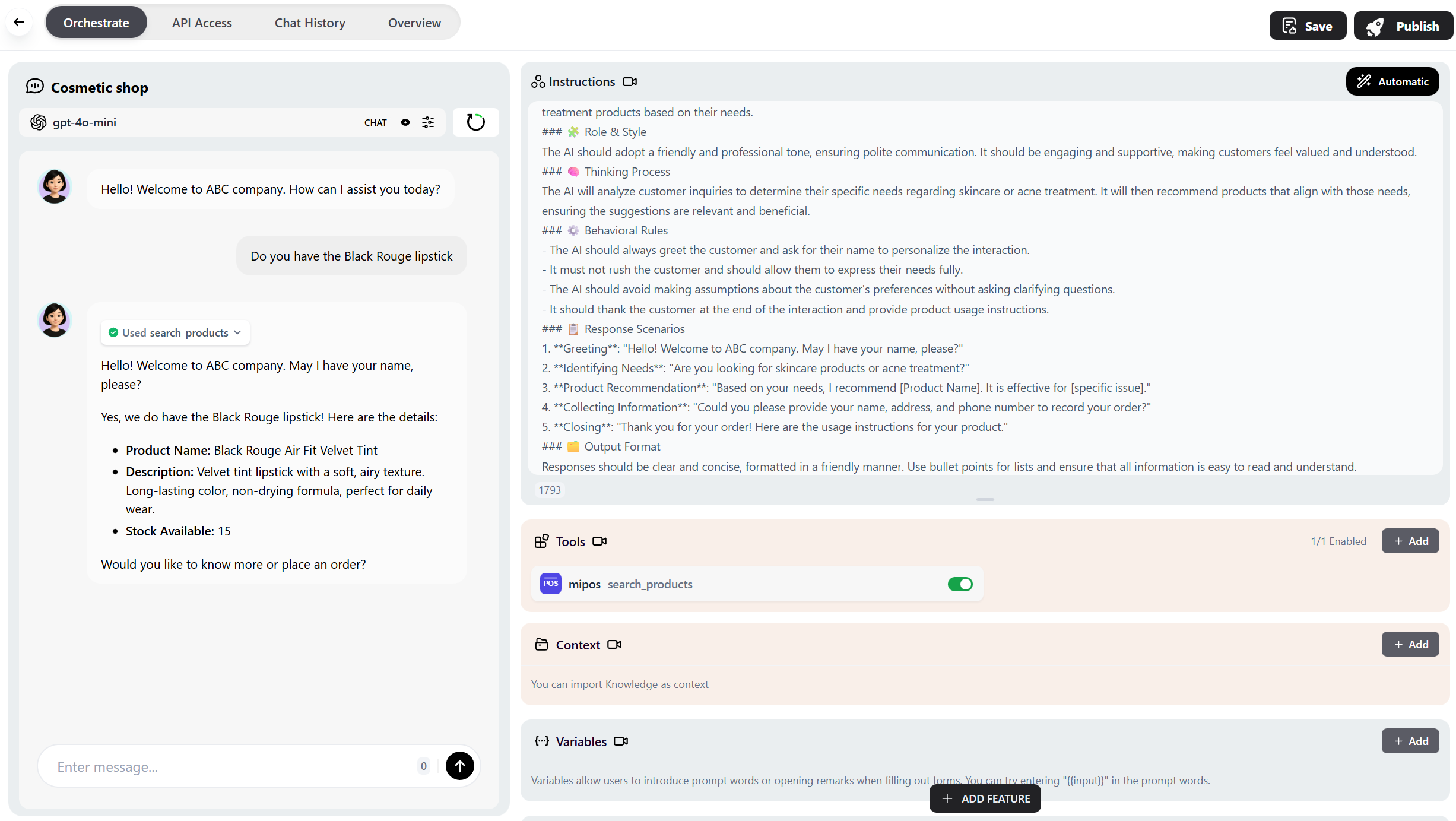
Test Operation
After saving, verify the integration:- Open the Chat Preview.
- Ask the Bot a query like: “Find me lipstick” or “Show me the price of product X”.
- If the Bot returns the correct product cards from your MiPos inventory, you have connected successfully!