

Member Management & Permissions
To operate the AI system effectively, AIHive allows you to invite colleagues to join your Workspace with different roles and permissions, ensuring security and specialization.Inviting New Members
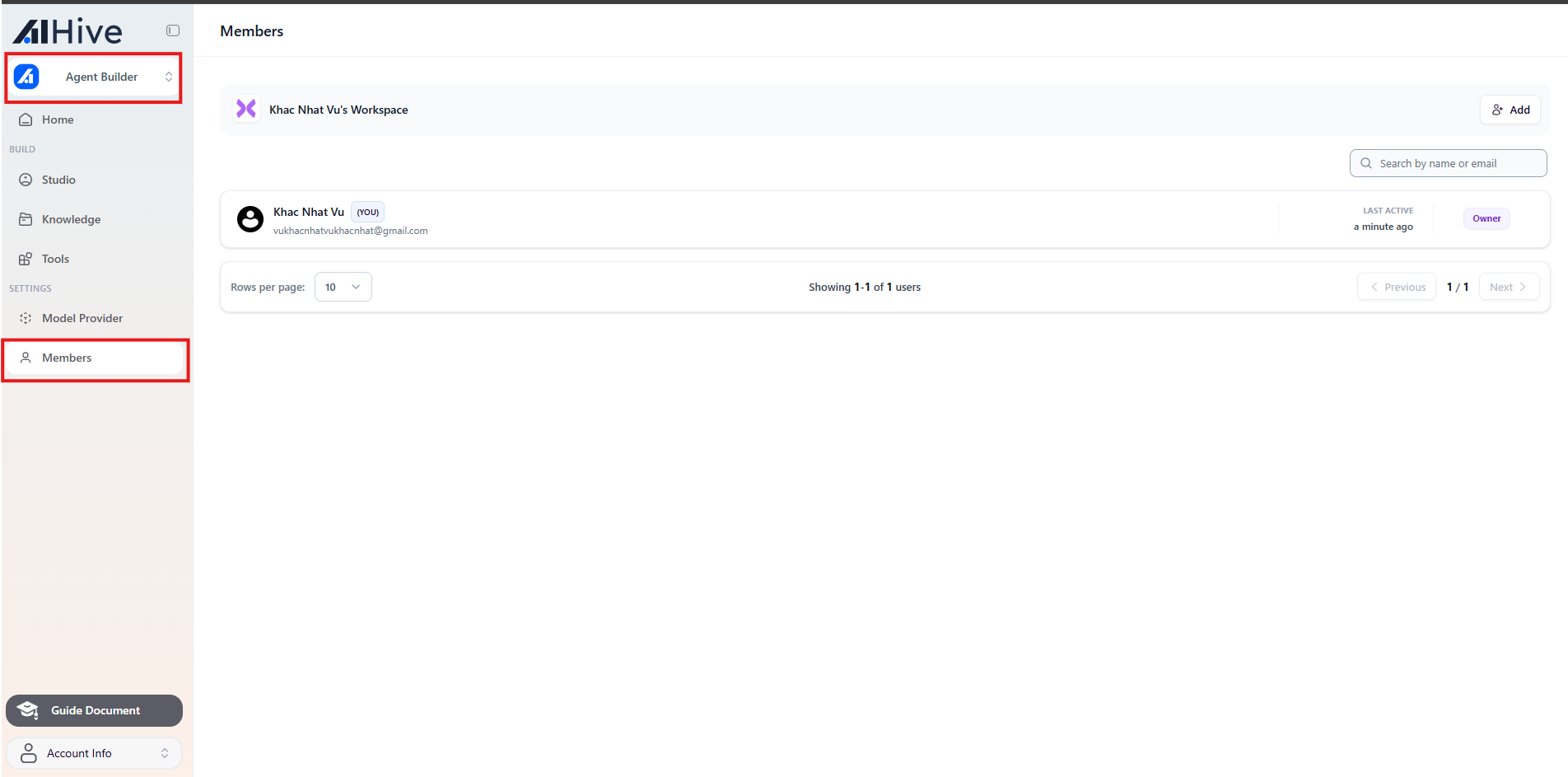
To add personnel to the system, follow these steps:Step 1: Access the Management Page
- On the main interface of Builder mode, click on Members in the left sidebar.
Step 2: Send an Invitation
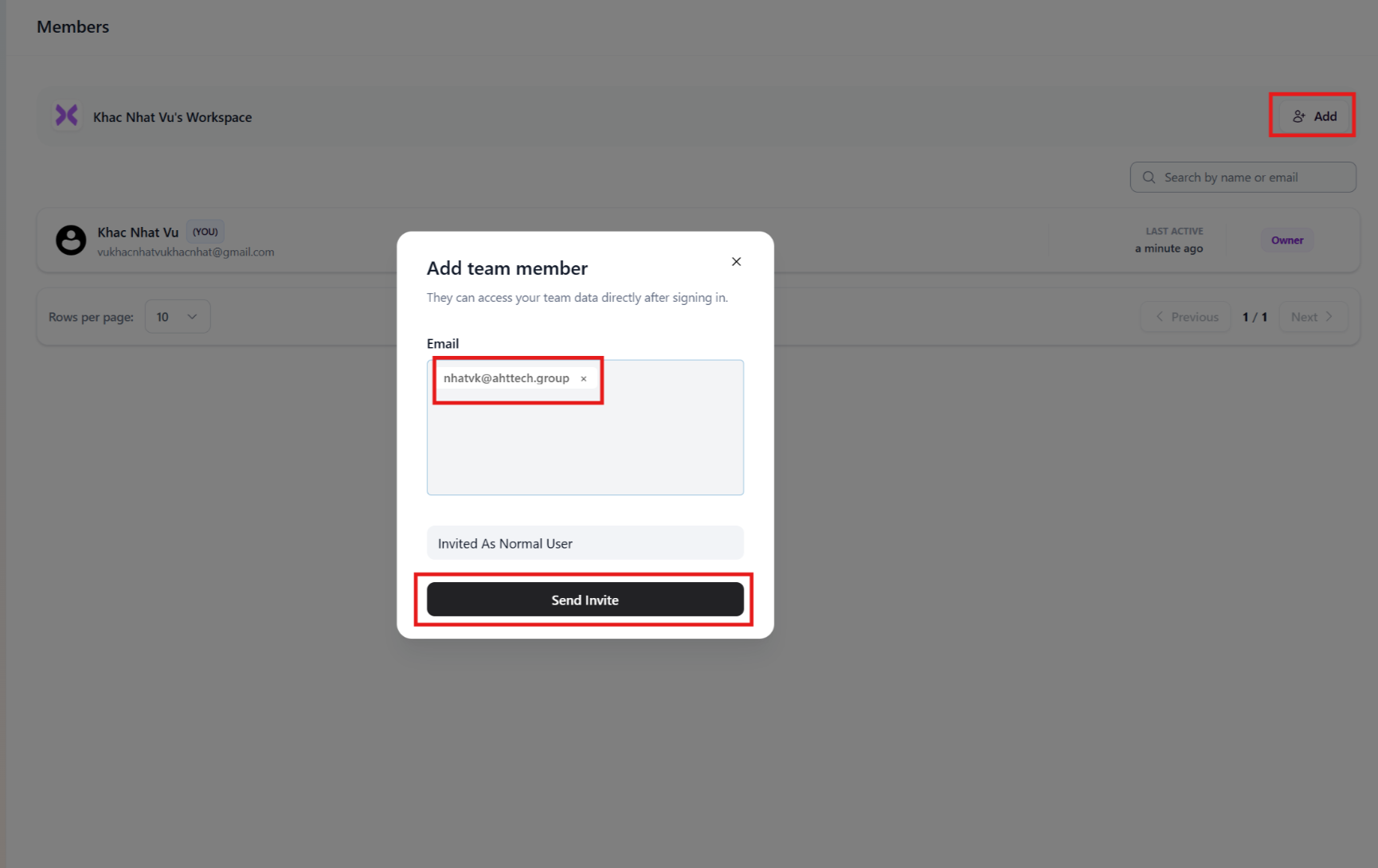
- Click the + Invite Member button in the top right corner.
- Enter the Email of the person you want to invite.
- Important: Select the appropriate Role for them (See detailed role descriptions in Section 2).
- Click Send.
Roles & Permissions Explained
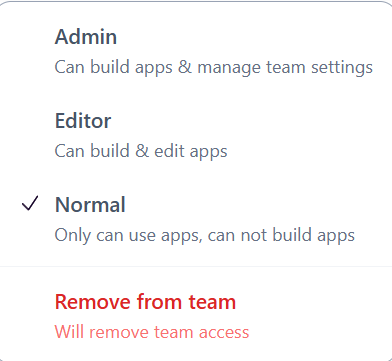
AIHive divides permissions strictly to ensure data security. Below is the detailed permission table:| Role | Permissions & Description | Suitable For |
|---|---|---|
| Owner | Full control: • Manage billing. • Delete Workspace. • Manage all Agents and Members. • Cannot be removed from the system. | Director, Business Owner, Account Creator. |
| Admin | Operational management: • Create/Edit/Delete Agents. • Invite or remove members (except Owner). • View all reports and chat history. ❌ Cannot access billing/subscription. | Technical Lead, Customer Service Team Leader. |
| Editor | Bot building: • Configure Prompt, Flow, Knowledge. • Edit Agents. ❌ Cannot delete Agents, invite members, or view system configuration. | Technical Staff, Content Creator, AI Trainer. |
| Normal / Viewer | Basic usage: • Can only view and test chat with Bot. • View chat logs (if permitted). ❌ Cannot view Prompts or edit configuration. | Customer Service Staff, Tester, Intern. |
Managing Existing Members
You can change permissions or remove members at any time.Change Role
- In the member list, find the person you want to modify.
- Click on their current role (e.g., Editor).
- Select the new role from the dropdown. The system will save automatically.
Remove Member
- Click the Trash icon (or three dots -> Remove) at the end of the member’s row.
- Confirm removal.
Note: After removal, that person will lose access immediately. Agents created by them will remain in the Workspace.
