> ## Documentation Index
> Fetch the complete documentation index at: https://docs.aihive.global/llms.txt
> Use this file to discover all available pages before exploring further.
# POS Integration for Product Consultation
> POS Integration for Product Consultation - AI Hive Documentation
# MiPos Integration (Product Search)
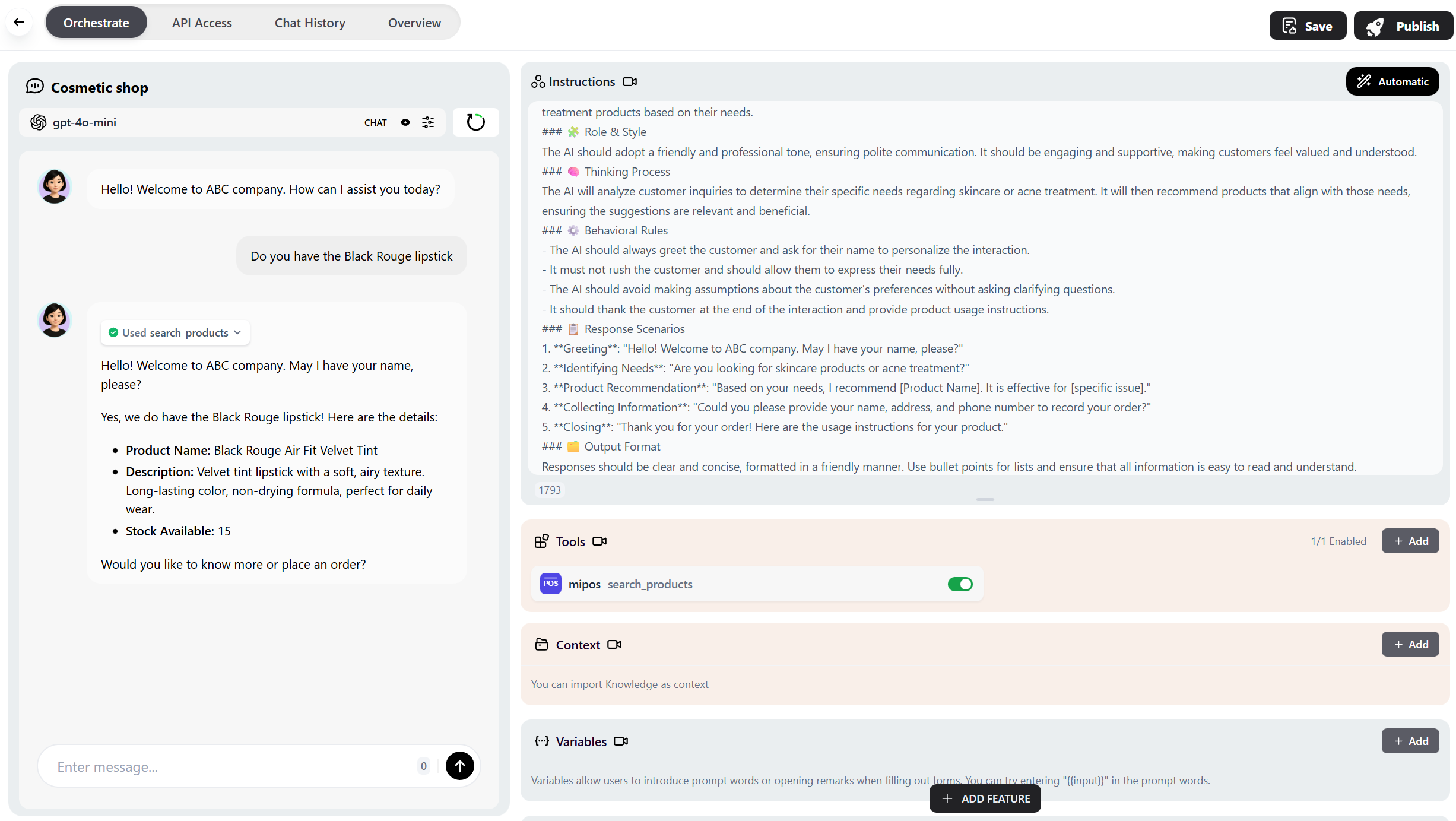
The **MiPos** tool allows your AI Agent to access your product database directly on MiPos to search, quote, and send product information to customers during conversations.
***
## Implementation Process
### Step 1: Prepare Data on MiPos
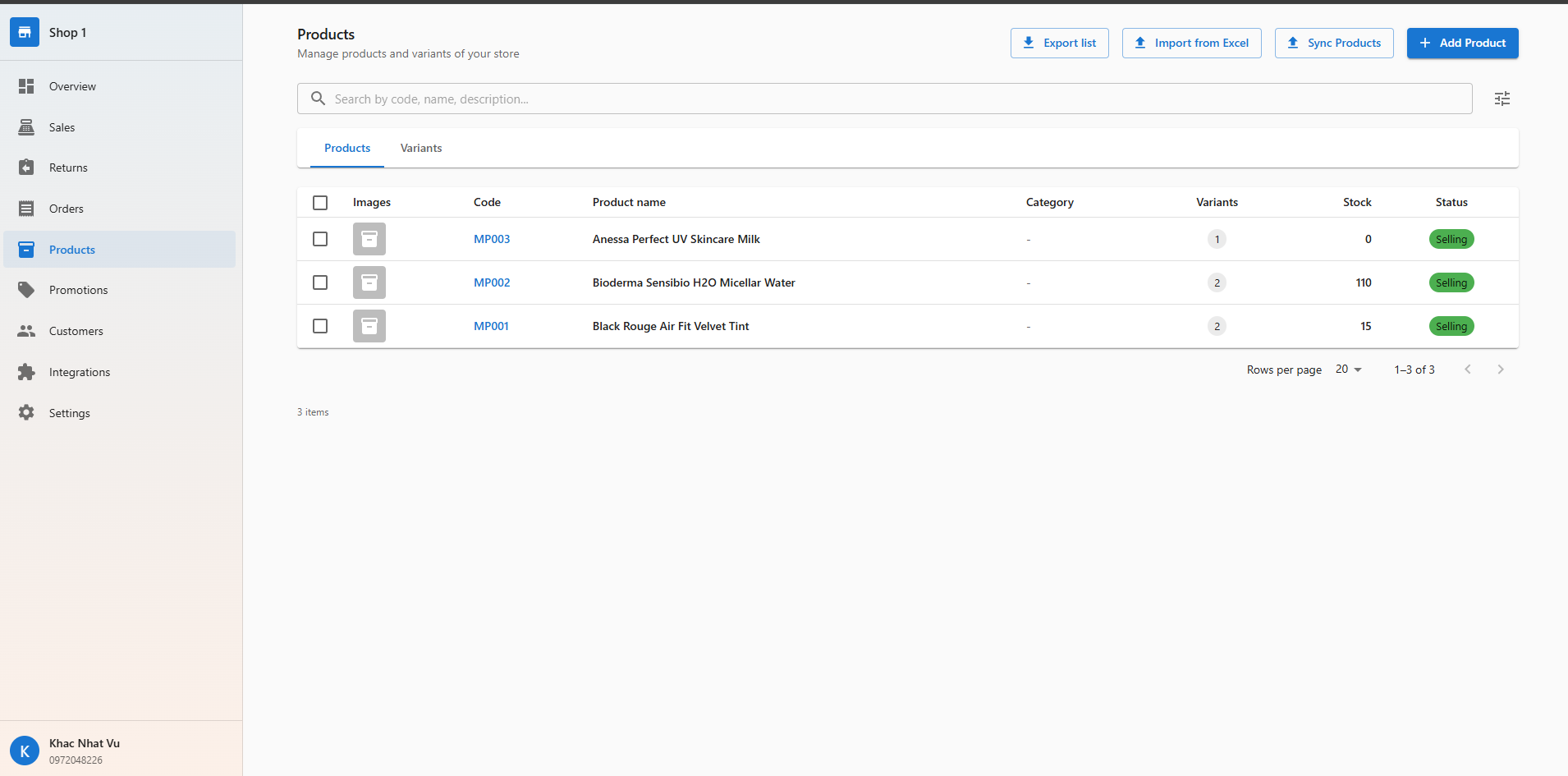
First, ensure you have an account and products on the MiPos system.
1. Register and log in to the MiPos admin page.
2. Create a new **Shop** (Store).
3. Add all products to that Shop (ensure fields like Name, Price, and Images are filled).
 ### Step 2: Add MiPos Tool to Agent
Return to the **AIHive Studio** interface to connect.
1. Select the Agent you want to integrate -> Go to the **Configuration** tab.
2. Scroll down to the **Tools / CRM, ERP Integration** section.
3. Click the **+ Add** button.
### Step 2: Add MiPos Tool to Agent
Return to the **AIHive Studio** interface to connect.
1. Select the Agent you want to integrate -> Go to the **Configuration** tab.
2. Scroll down to the **Tools / CRM, ERP Integration** section.
3. Click the **+ Add** button.
 In the list that appears, find and select the **"MiPos Product Search"** tool.
 ### Step 3: Configure Connection (API Key)
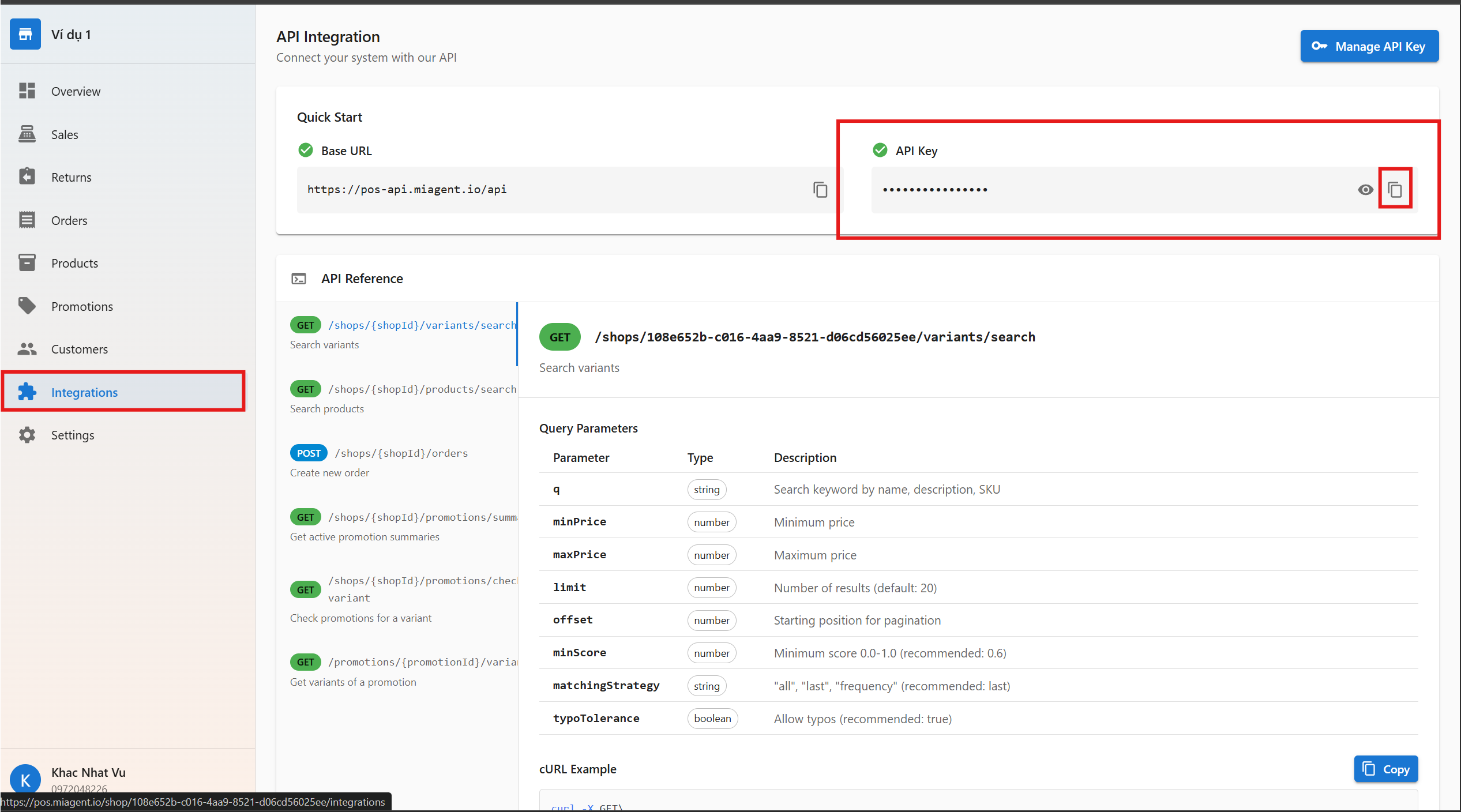
For the Agent to "communicate" with your Shop, you need to provide the connection key.
1. After adding the tool, click the **Settings icon (⚙️ or ℹ️)** next to the MiPos tool.
2. An input form appears requesting 2 parameters:
* **API Key:** Security key.
* **Shop ID:** Store identifier.
### Step 3: Configure Connection (API Key)
For the Agent to "communicate" with your Shop, you need to provide the connection key.
1. After adding the tool, click the **Settings icon (⚙️ or ℹ️)** next to the MiPos tool.
2. An input form appears requesting 2 parameters:
* **API Key:** Security key.
* **Shop ID:** Store identifier.
 > 💡 How to get this information:
>
> 1. Open the **MiPos** admin page in a new tab.
> 2. Go to **Settings** (or **API Developer** section).
> 3. Copy the `API Key` and `Shop ID`.
> 4. Paste them back into the AIHive Studio configuration form.
> 💡 How to get this information:
>
> 1. Open the **MiPos** admin page in a new tab.
> 2. Go to **Settings** (or **API Developer** section).
> 3. Copy the `API Key` and `Shop ID`.
> 4. Paste them back into the AIHive Studio configuration form.
 Click **Save** to complete the connection.
***
## Test Operation
After saving, verify the integration:
1. Open the Chat Preview.
2. Ask the Bot a query like: *"Find me lipstick"* or *"Show me the price of product X"*.
3. If the Bot returns the correct product cards from your MiPos inventory, you have connected successfully!
Click **Save** to complete the connection.
***
## Test Operation
After saving, verify the integration:
1. Open the Chat Preview.
2. Ask the Bot a query like: *"Find me lipstick"* or *"Show me the price of product X"*.
3. If the Bot returns the correct product cards from your MiPos inventory, you have connected successfully!