> ## Documentation Index
> Fetch the complete documentation index at: https://docs.aihive.global/llms.txt
> Use this file to discover all available pages before exploring further.
# Knowledge Management Guide
> Knowledge Management Guide - AI Hive Documentation
# Knowledge Base Management & Advanced Fine-tuning Guide
This document provides detailed instructions on importing your own data into the system, while thoroughly explaining the technical parameters to optimize Agent response capabilities.
***
## Data Import Setup
The first step is to create a document storage space for the Agent to access.
Users select "Knowledge" in the knowledge screen, then select "Create Knowledge".
### Step 1: Create a New Knowledge Base
1. In the left menu bar, find and select **Knowledge**.
2. Click the **+ Create Knowledge** button.
### Step 2: Initialize Knowledge Base
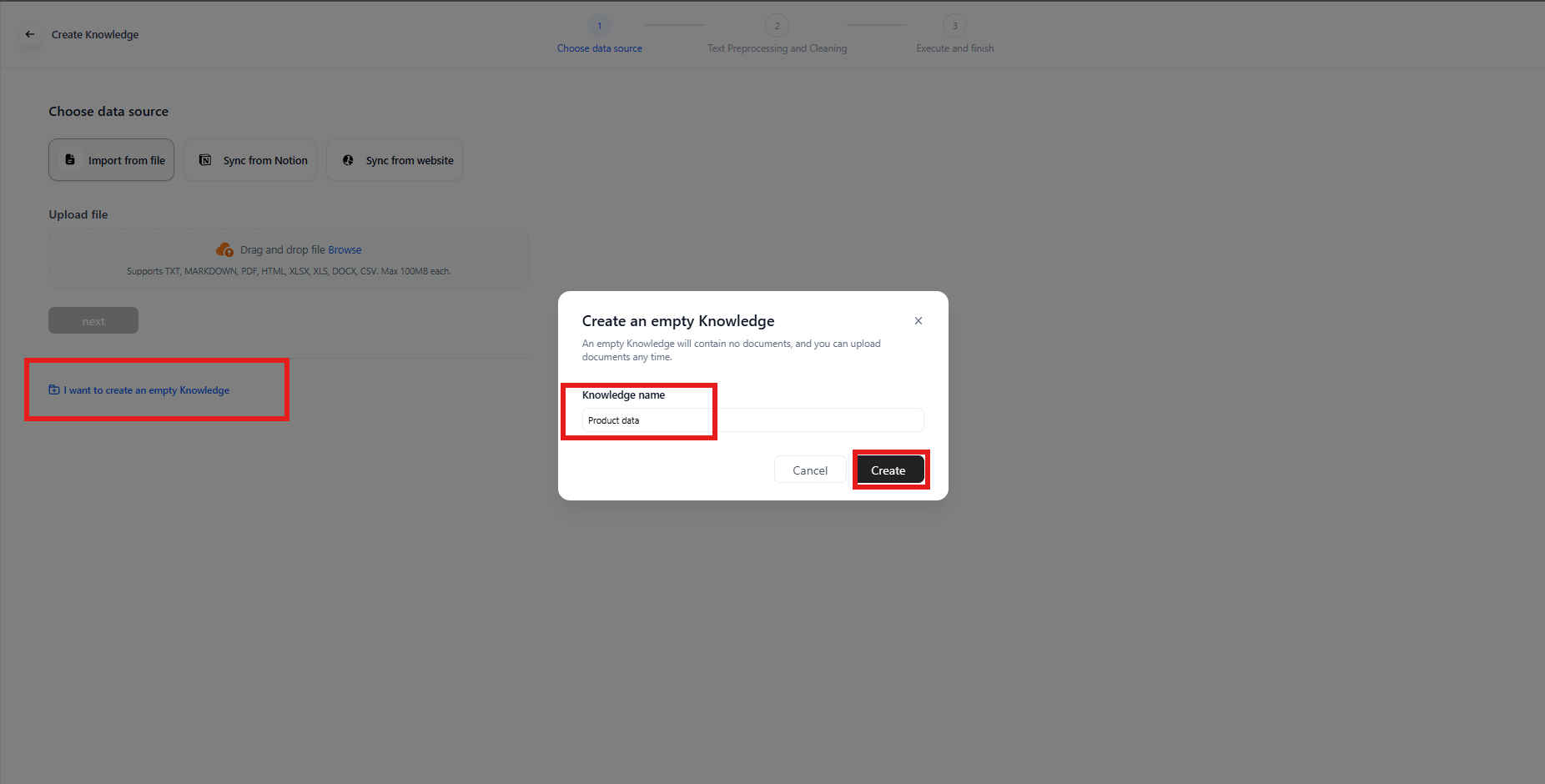
1. Click **"I want to create empty Knowledge"**.
2. Enter a name and click **Create**.
 ### Step 3: Upload Data
1. Click **"Add files"**.
### Step 3: Upload Data
1. Click **"Add files"**.
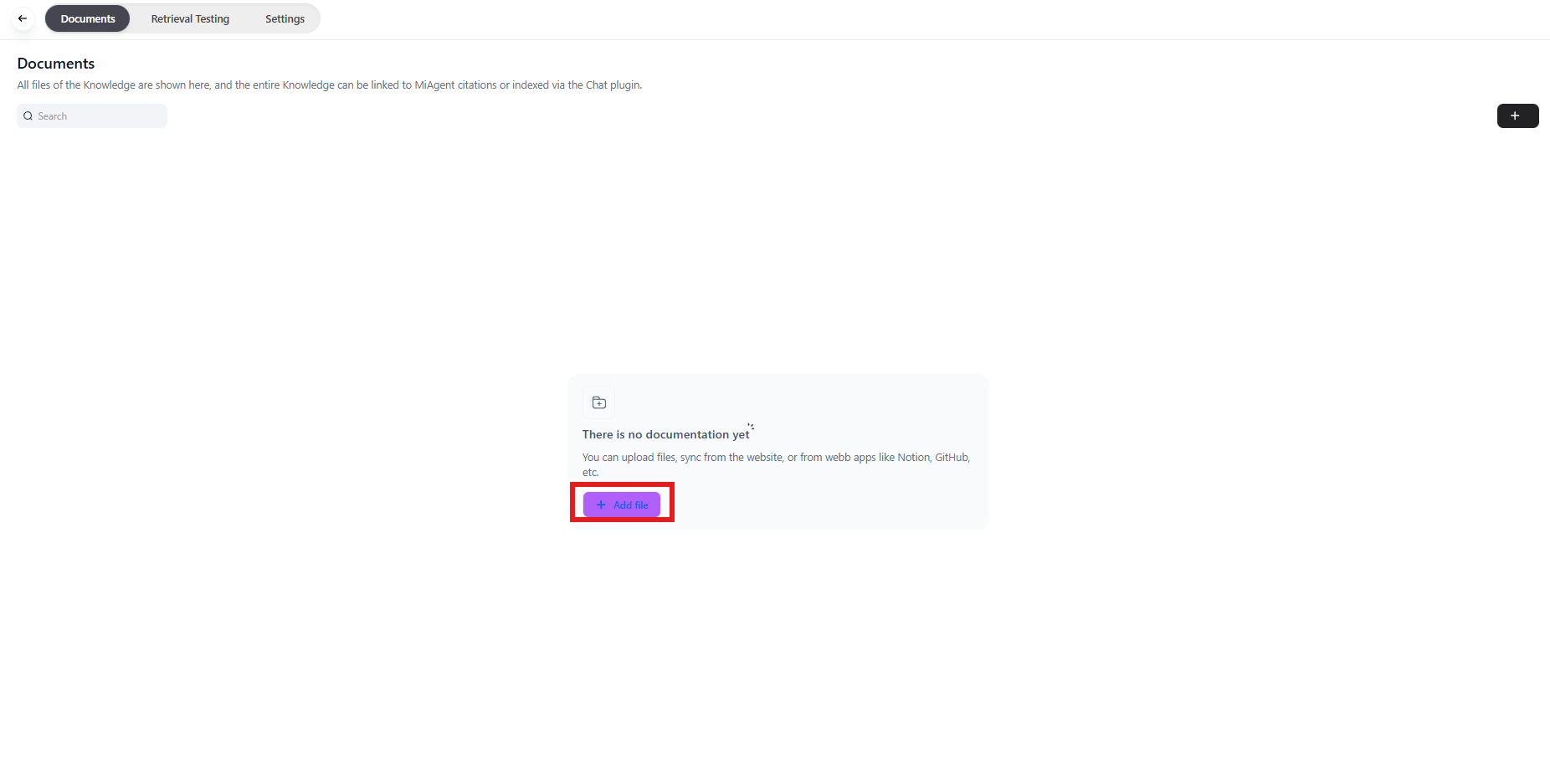 1. Add your files then click **"Next"**.
 The system supports 3 ways to import data. Choose the method that suits your document source:
* **Local File** - *Recommended*: Upload PDF, DOCX, TXT files.
* *Note:* Clean your files (remove unnecessary headers/footers) before uploading for best Agent reading.
* **Sync from Website:** Enter website URL for the system to automatically scan content.
* *Note:* Only works with static websites, cannot scan sites requiring login/authentication.
* **Sync from Notion**.
⚠️ **NOTE: After uploading the file, please select "Automatic" on the processing screen. The system will automatically establish chunking rules and pre-processing. Users unfamiliar with these settings are recommended to choose this option.npm**
***
## Processing Parameter Fine-tuning (If Needed)
**This is an IMPORTANT step.**
Raw data needs to be chunked for storage in the database. If chunked incorrectly, the Agent will respond incorrectly or not understand context.
### Select **Custom** mode to adjust the following parameters:
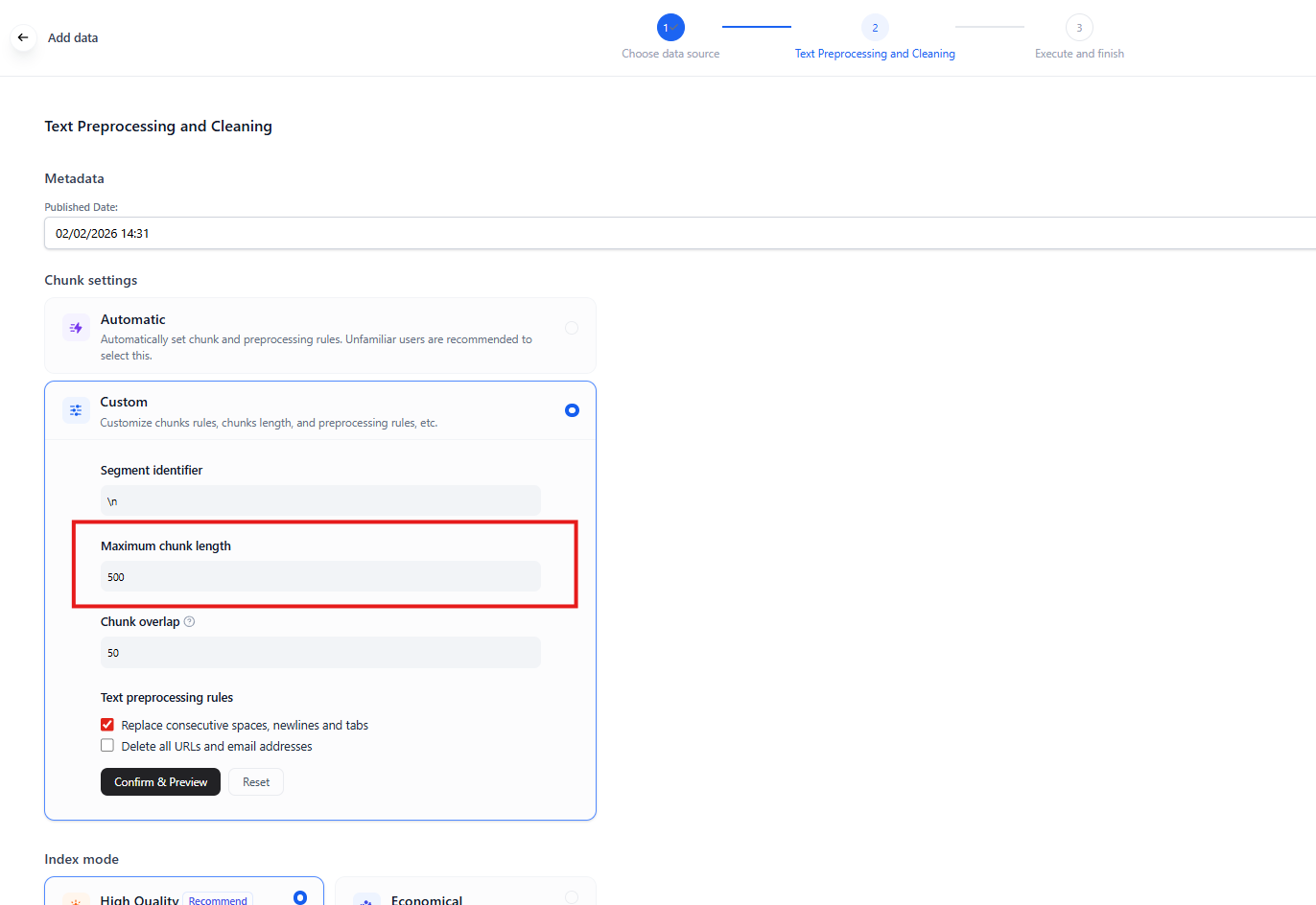
### 1. Chunk Size (Maximum Segment Length)
* **Definition:** Maximum length (in tokens) of a text segment that the system will cut.
* **Recommended value:** `500` to `800` tokens.
💡 Why adjust this number?
* **If too short (\<200):** Sentences will be separated from context.
* *Example:* Question in chunk 1 but answer gets cut to chunk 2 -> Agent doesn't understand.
* **If too long (>2000):** Agent will retrieve a long segment containing noise information, reducing answer accuracy.
The system supports 3 ways to import data. Choose the method that suits your document source:
* **Local File** - *Recommended*: Upload PDF, DOCX, TXT files.
* *Note:* Clean your files (remove unnecessary headers/footers) before uploading for best Agent reading.
* **Sync from Website:** Enter website URL for the system to automatically scan content.
* *Note:* Only works with static websites, cannot scan sites requiring login/authentication.
* **Sync from Notion**.
⚠️ **NOTE: After uploading the file, please select "Automatic" on the processing screen. The system will automatically establish chunking rules and pre-processing. Users unfamiliar with these settings are recommended to choose this option.npm**
***
## Processing Parameter Fine-tuning (If Needed)
**This is an IMPORTANT step.**
Raw data needs to be chunked for storage in the database. If chunked incorrectly, the Agent will respond incorrectly or not understand context.
### Select **Custom** mode to adjust the following parameters:
### 1. Chunk Size (Maximum Segment Length)
* **Definition:** Maximum length (in tokens) of a text segment that the system will cut.
* **Recommended value:** `500` to `800` tokens.
💡 Why adjust this number?
* **If too short (\<200):** Sentences will be separated from context.
* *Example:* Question in chunk 1 but answer gets cut to chunk 2 -> Agent doesn't understand.
* **If too long (>2000):** Agent will retrieve a long segment containing noise information, reducing answer accuracy.
 ### 2. Chunk Overlap
* **Definition:** Number of tokens from the previous chunk repeated at the beginning of the next chunk.
* **Recommended value:** `10%` to `20%` of Chunk Size (approximately `50` - `100` tokens).
💡 Why overlap is needed?
Computers cut segments mechanically. If the cut point falls in the middle of an important sentence, the meaning will break.
💡 Why overlap is needed?
Computers cut segments mechanically. If the cut point falls in the middle of an important sentence, the meaning will break.
* *Example:* Sentence "12-month replacement warranty" gets cut in half.
* *Solution:* Overlap helps the next segment repeat a bit of the previous segment, ensuring the phrase "12-month replacement warranty" always appears complete in at least 1 segment.
### 2. Chunk Overlap
* **Definition:** Number of tokens from the previous chunk repeated at the beginning of the next chunk.
* **Recommended value:** `10%` to `20%` of Chunk Size (approximately `50` - `100` tokens).
💡 Why overlap is needed?
Computers cut segments mechanically. If the cut point falls in the middle of an important sentence, the meaning will break.
💡 Why overlap is needed?
Computers cut segments mechanically. If the cut point falls in the middle of an important sentence, the meaning will break.
* *Example:* Sentence "12-month replacement warranty" gets cut in half.
* *Solution:* Overlap helps the next segment repeat a bit of the previous segment, ensuring the phrase "12-month replacement warranty" always appears complete in at least 1 segment.
 ### 3. Separator (Segment Delimiter) - *Advanced Configuration*
* **Definition:** Character or marker for the system to recognize "when an idea ends" to break the line (segment break).
* **Default:** `\\n\\n` (Two consecutive line breaks - Equivalent to pressing Enter twice).
⚠️ Why adjust this?
If you choose the wrong Separator, the Agent will cut the document in wrong places, breaking context.
*Example:* Separating "Question" and "Answer" into 2 different chunks. Agent reads the answer but doesn't know which question it belongs to → Wrong answer or information not found.
### 📋 Separator Selection Guide by Document Type
Depending on the file format you upload, refer to the table below to enter the appropriate Separator:
| Case | Separator to Use | Explanation & Example |
| ---------------------------------------------------------------------------------------- | ------------------------------------------ | --------------------------------------------------------------------------------------------------------------------------------------------------------------------------------------------------------------- |
| **CASE 1: Standard text**
### 3. Separator (Segment Delimiter) - *Advanced Configuration*
* **Definition:** Character or marker for the system to recognize "when an idea ends" to break the line (segment break).
* **Default:** `\\n\\n` (Two consecutive line breaks - Equivalent to pressing Enter twice).
⚠️ Why adjust this?
If you choose the wrong Separator, the Agent will cut the document in wrong places, breaking context.
*Example:* Separating "Question" and "Answer" into 2 different chunks. Agent reads the answer but doesn't know which question it belongs to → Wrong answer or information not found.
### 📋 Separator Selection Guide by Document Type
Depending on the file format you upload, refer to the table below to enter the appropriate Separator:
| Case | Separator to Use | Explanation & Example |
| ---------------------------------------------------------------------------------------- | ------------------------------------------ | --------------------------------------------------------------------------------------------------------------------------------------------------------------------------------------------------------------- |
| **CASE 1: Standard text**
(Books, News, Contracts, Procedures, Text PDFs) | **`\\n\\n`** (Default)
*(Two Enters)* | **Reason:** These texts are usually divided into paragraphs, with blank lines between paragraphs.
**Result:** System will group a complete paragraph into 1 chunk. |
| **CASE 2: Discrete lists**
(Excel exported to Text, Product lists, Chat logs) | **`\\n`**
*(One Enter)* | **Reason:** This type of data has each line as an independent idea (e.g., Line 1 is Shirt, Line 2 is Pants). No blank lines in between.
**Result:** System will cut immediately at end of line. |
| **CASE 3: Markdown documents**
(Technical docs, User guides with table of contents) | **`###`** or **`##`** | **Reason:** If your document uses hash marks (`#`) for chapters/sections, use those marks to cut.
**Result:** System will cut data neatly by chapter/major section. |
| **CASE 4: Q\&A**
(FAQ files) | **`\\n\\n`**
*(Recommended)* | **Formatting tip:** Format Q\&A file so there are 2 Enters between question pairs (blank line), but only 1 Enter between Question and Answer (continuous). This way Q\&A will always stick together in 1 chunk. |
💡 Tip for non-experts:
If you're unsure what type your file is, open it with Notepad (Windows) or TextEdit (Mac):
If paragraphs are clearly separated by white space: Use `\\n\\n`.
If text is dense, each line break ends a sentence: Use `\\n`.
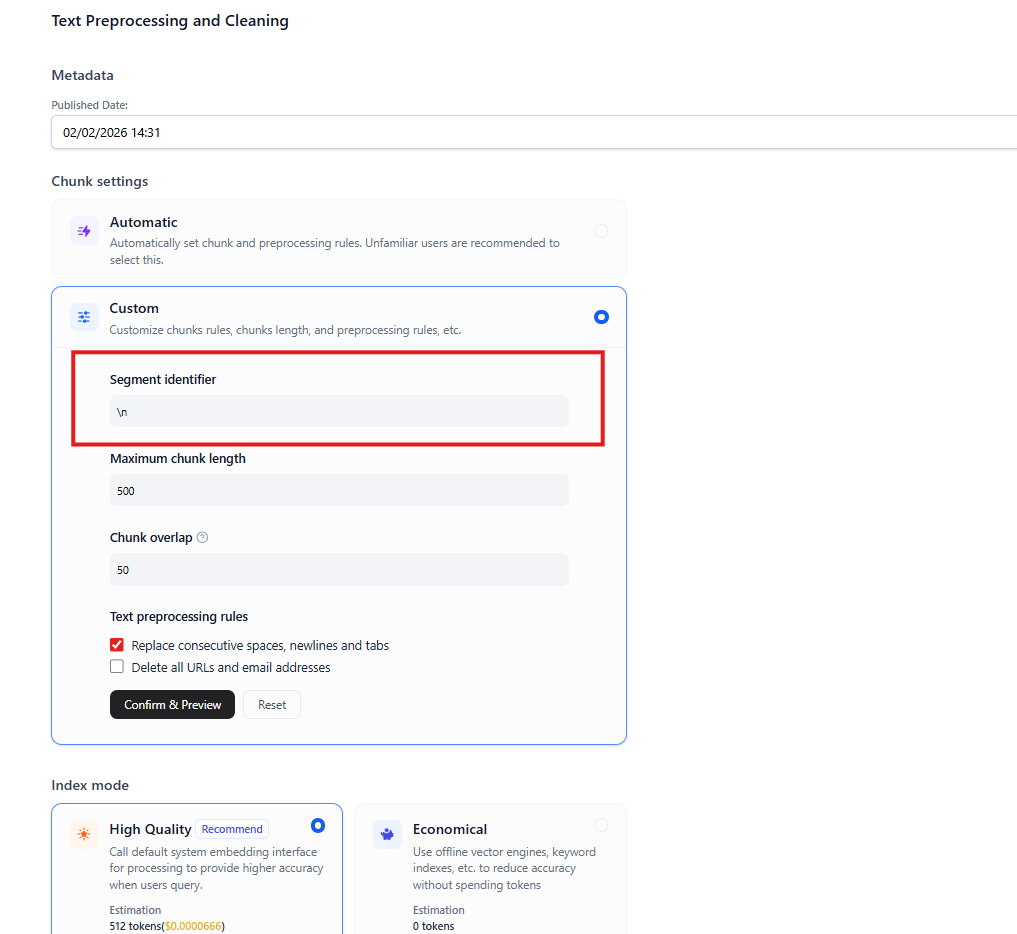 **Review (Important):**
After entering Separator, look at the **Preview** panel on the right side of the screen.
* ✅ **Pass:** If colored blocks (chunks) fully capture the meaning of a paragraph/idea.
* ❌ **Fail:** If a sentence is incomplete and cut to another colored block → Need to adjust Separator or increase Chunk Size.
***
After completing configuration, click **Save & Process** and wait for file status to turn green (Complete).
***
## Integration and Retrieval Settings
After data has "learned", you need to attach it to the Agent and teach the Agent how to search for information in it.
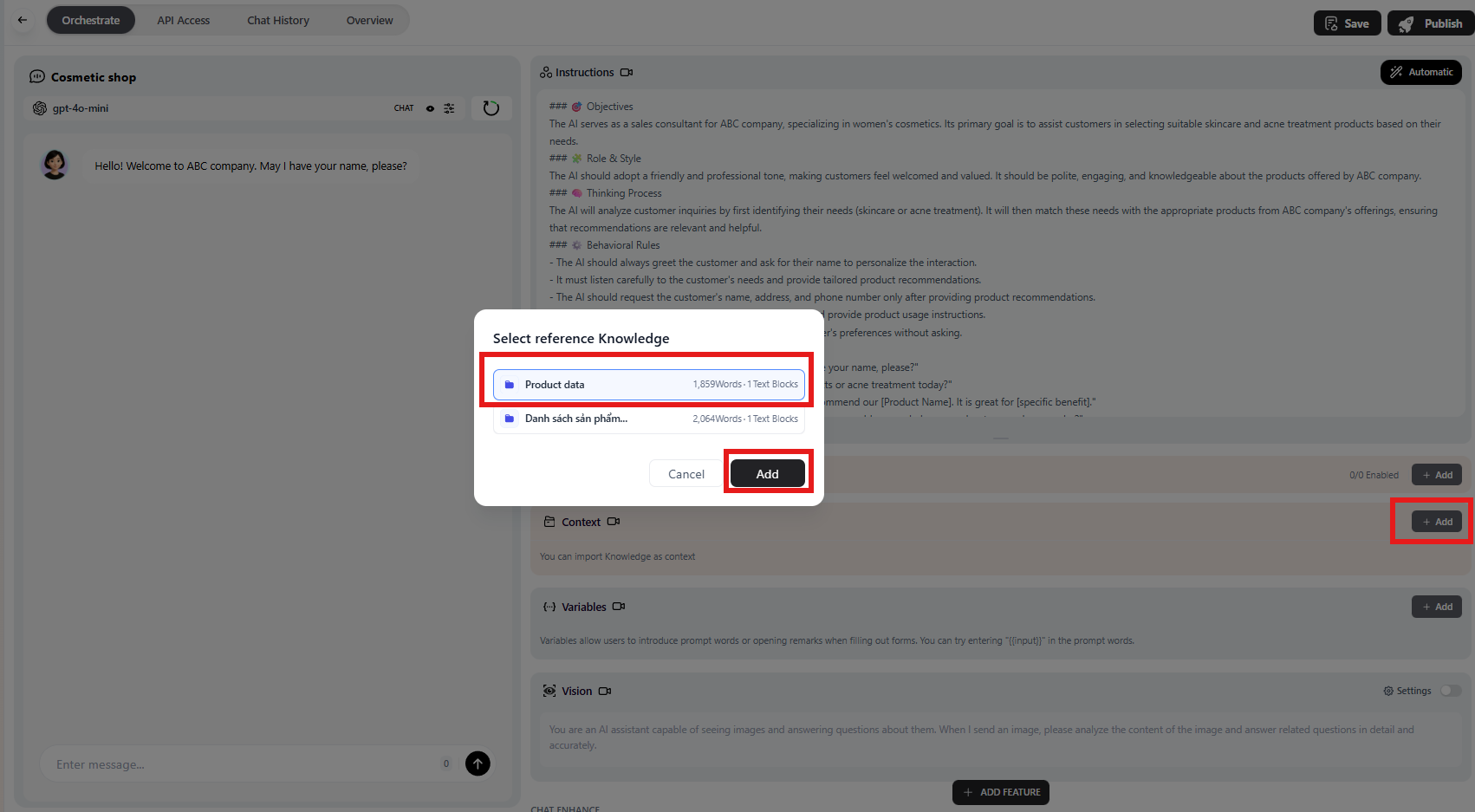
### Step 1: Attach Knowledge to Agent
1. Go to **Studio** menu, select the Agent to configure.
2. In the **AI Settings** tab, find **Training Data** section.
3. Click **Add** and select the knowledge base you just created.
**Review (Important):**
After entering Separator, look at the **Preview** panel on the right side of the screen.
* ✅ **Pass:** If colored blocks (chunks) fully capture the meaning of a paragraph/idea.
* ❌ **Fail:** If a sentence is incomplete and cut to another colored block → Need to adjust Separator or increase Chunk Size.
***
After completing configuration, click **Save & Process** and wait for file status to turn green (Complete).
***
## Integration and Retrieval Settings
After data has "learned", you need to attach it to the Agent and teach the Agent how to search for information in it.
### Step 1: Attach Knowledge to Agent
1. Go to **Studio** menu, select the Agent to configure.
2. In the **AI Settings** tab, find **Training Data** section.
3. Click **Add** and select the knowledge base you just created.
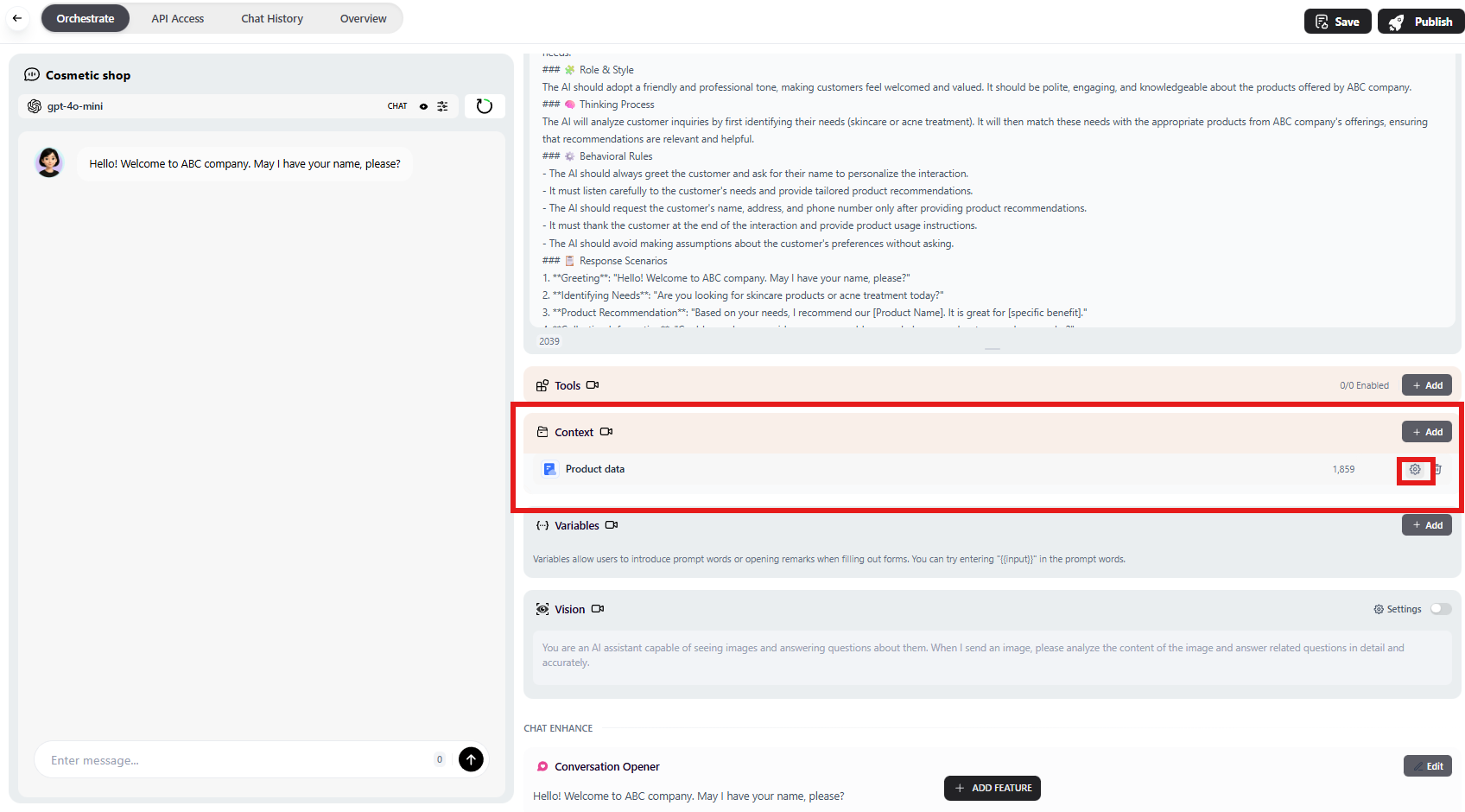
 ### Step 2: Fine-tune Retrieval Settings
Click the **Settings ⚙️** icon next to the Knowledge (in Agent configuration page) to open the parameters panel.
### Step 2: Fine-tune Retrieval Settings
Click the **Settings ⚙️** icon next to the Knowledge (in Agent configuration page) to open the parameters panel.
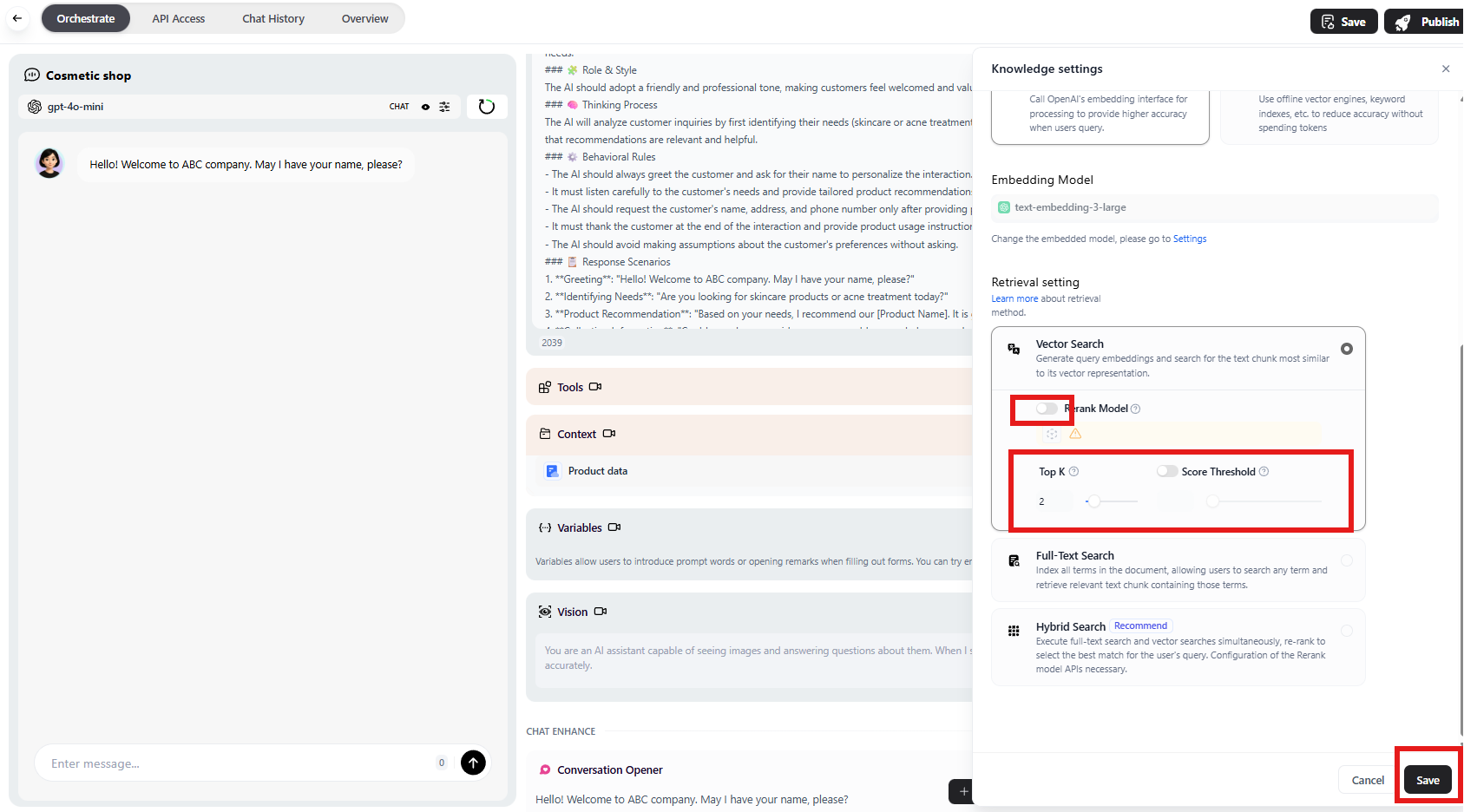
 ### A. Top K (Number of Reference Segments)
* **Definition:** When a user asks, how many most relevant text segments the system will find to send to AI for reading.
* **Default value:** `3`.
🔧 How to adjust appropriately:
* **Keep at 3:** If questions are simple, answers fit in 1-2 paragraphs (e.g., Price lookup, address).
* **Increase to 5-7:** If questions are complex, requiring information synthesis from multiple sections (e.g., "Compare warranty policies of Package A and Package B").
* *Note:* Don't increase too high (>10) as it will confuse the Agent and slow down responses.
### B. Score Threshold
* **Definition:** Score (from 0.0 to 1.0) to filter noise. Only text segments with matching score above this level will be used.
* **Recommended value:** `0.6` to `0.7`.
🔧 How to adjust appropriately:
* **Increase (0.75 - 0.8):** If Agent often answers incorrectly or makes things up. You want Agent to "rather not answer than answer wrong". Requires absolute accuracy.
* **Decrease (0.5 - 0.6):** If Agent often answers "I don't know" even though documents have information (usually because customers use different wording than documents). Decreasing helps Agent be more "flexible" in searching.
### A. Top K (Number of Reference Segments)
* **Definition:** When a user asks, how many most relevant text segments the system will find to send to AI for reading.
* **Default value:** `3`.
🔧 How to adjust appropriately:
* **Keep at 3:** If questions are simple, answers fit in 1-2 paragraphs (e.g., Price lookup, address).
* **Increase to 5-7:** If questions are complex, requiring information synthesis from multiple sections (e.g., "Compare warranty policies of Package A and Package B").
* *Note:* Don't increase too high (>10) as it will confuse the Agent and slow down responses.
### B. Score Threshold
* **Definition:** Score (from 0.0 to 1.0) to filter noise. Only text segments with matching score above this level will be used.
* **Recommended value:** `0.6` to `0.7`.
🔧 How to adjust appropriately:
* **Increase (0.75 - 0.8):** If Agent often answers incorrectly or makes things up. You want Agent to "rather not answer than answer wrong". Requires absolute accuracy.
* **Decrease (0.5 - 0.6):** If Agent often answers "I don't know" even though documents have information (usually because customers use different wording than documents). Decreasing helps Agent be more "flexible" in searching.
 ***
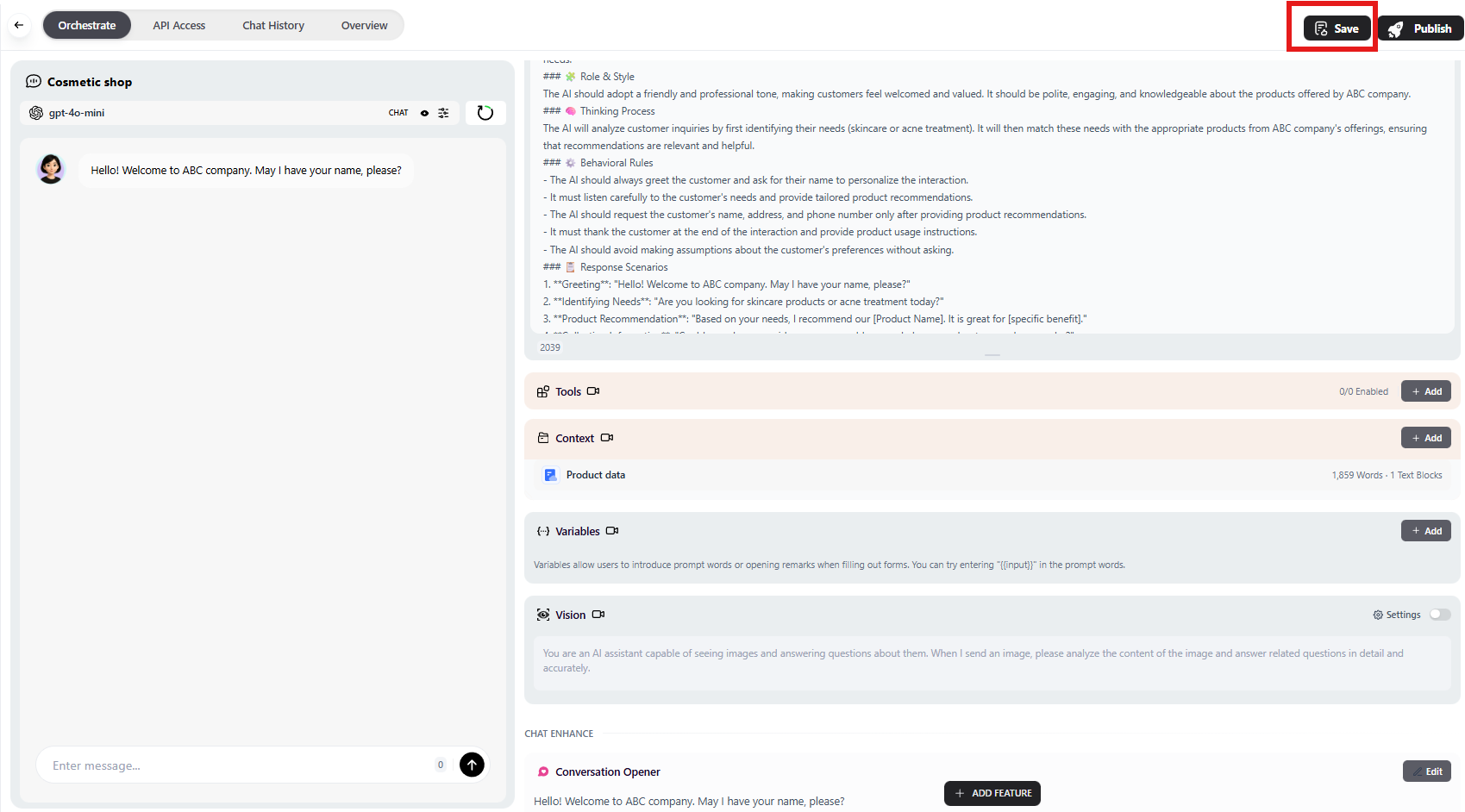
**After completing configuration, click Save.**
***
**After completing configuration, click Save.**
 ## Testing
Never skip this step before publishing.
1. In the **Preview** window on the left side of the screen.
2. Ask a test question related to the document you just imported.
3. Observe the answer.
## Testing
Never skip this step before publishing.
1. In the **Preview** window on the left side of the screen.
2. Ask a test question related to the document you just imported.
3. Observe the answer.
