> ## Documentation Index
> Fetch the complete documentation index at: https://docs.aihive.global/llms.txt
> Use this file to discover all available pages before exploring further.
# Messenger Integration
> Messenger Integration - AI Hive Documentation
# Messenger Integration
**Connect Facebook Messenger** is the standard process to integrate AIHive with your Fanpage, enabling the Bot to automatically respond to customer messages.
***
## Implementation Process
### Step 1: Publish Agent
Before connecting, ensure your Agent is ready.
1. On the Agent configuration interface, click the **Publish** button in the top right corner.
2. The system will save all your latest Prompt, Knowledge, and Tools configurations.
 ### Step 2: Access the Integration Menu
1. In the left menu bar, find and click on **Integrations** (or *Channels* depending on the version).
2. Find the **Facebook Messenger** card.
### Step 2: Access the Integration Menu
1. In the left menu bar, find and click on **Integrations** (or *Channels* depending on the version).
2. Find the **Facebook Messenger** card.
 ### Step 3: Login to Facebook
1. Click the **Connect** button on the Facebook card.
2. A popup window appears. Click **"Continue as..."** to log in with the personal Facebook account that manages the Fanpage.
### Step 3: Login to Facebook
1. Click the **Connect** button on the Facebook card.
2. A popup window appears. Click **"Continue as..."** to log in with the personal Facebook account that manages the Fanpage.
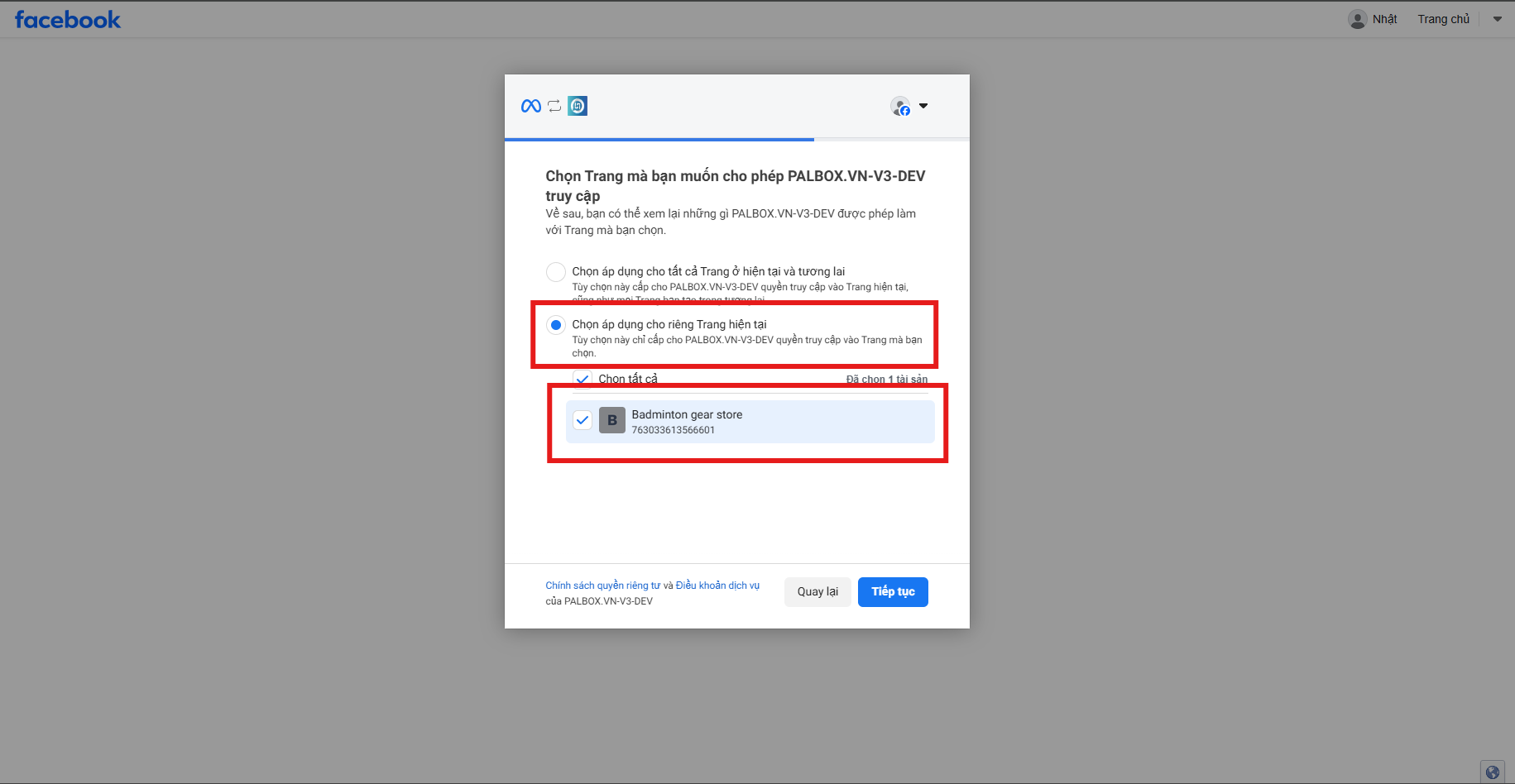
 ### Step 4: Grant Page Management Permission (Important)
This is the most critical step.
1. Select **"Edit previous settings"** (if you've connected before) or select from the new Page list.
2. **Crucial:** Check the box **"Apply only for the current Page"**.
3. Tick the exact **Fanpage** you want to integrate this Agent with.
4. Click **Next** and grant all required permissions (Manage Page, Send Messages...).
> ⚠️ Note: If you do not grant full permissions, the Bot may not be able to read or reply to messages.
### Step 4: Grant Page Management Permission (Important)
This is the most critical step.
1. Select **"Edit previous settings"** (if you've connected before) or select from the new Page list.
2. **Crucial:** Check the box **"Apply only for the current Page"**.
3. Tick the exact **Fanpage** you want to integrate this Agent with.
4. Click **Next** and grant all required permissions (Manage Page, Send Messages...).
> ⚠️ Note: If you do not grant full permissions, the Bot may not be able to read or reply to messages.

 ### Step 5: Complete
1. After granting permissions, click **Save** / **Done**.
2. Return to the AIHive screen, you will see the Fanpage status change to **Connected** (Green).
### Step 5: Complete
1. After granting permissions, click **Save** / **Done**.
2. Return to the AIHive screen, you will see the Fanpage status change to **Connected** (Green).
 ***
## Testing
After a successful connection, verify the integration:
1. Open the **Facebook** or **Messenger** app on your phone.
2. Go to the connected Fanpage.
3. Act as a customer and send a test message (e.g., *"Hello"*).
4. If the Bot responds immediately -> **You've succeeded!** 🎉
***
## Testing
After a successful connection, verify the integration:
1. Open the **Facebook** or **Messenger** app on your phone.
2. Go to the connected Fanpage.
3. Act as a customer and send a test message (e.g., *"Hello"*).
4. If the Bot responds immediately -> **You've succeeded!** 🎉