> ## Documentation Index
> Fetch the complete documentation index at: https://docs.aihive.global/llms.txt
> Use this file to discover all available pages before exploring further.
# Create Your First Agent
> Create Your First Agent - AI Hive Documentation
# Guide to Creating Your First AI Agent
With just 4 simple steps, you'll have a smart virtual assistant ready to consult and close deals for your business.
***
## Step 1: Initialize Agent
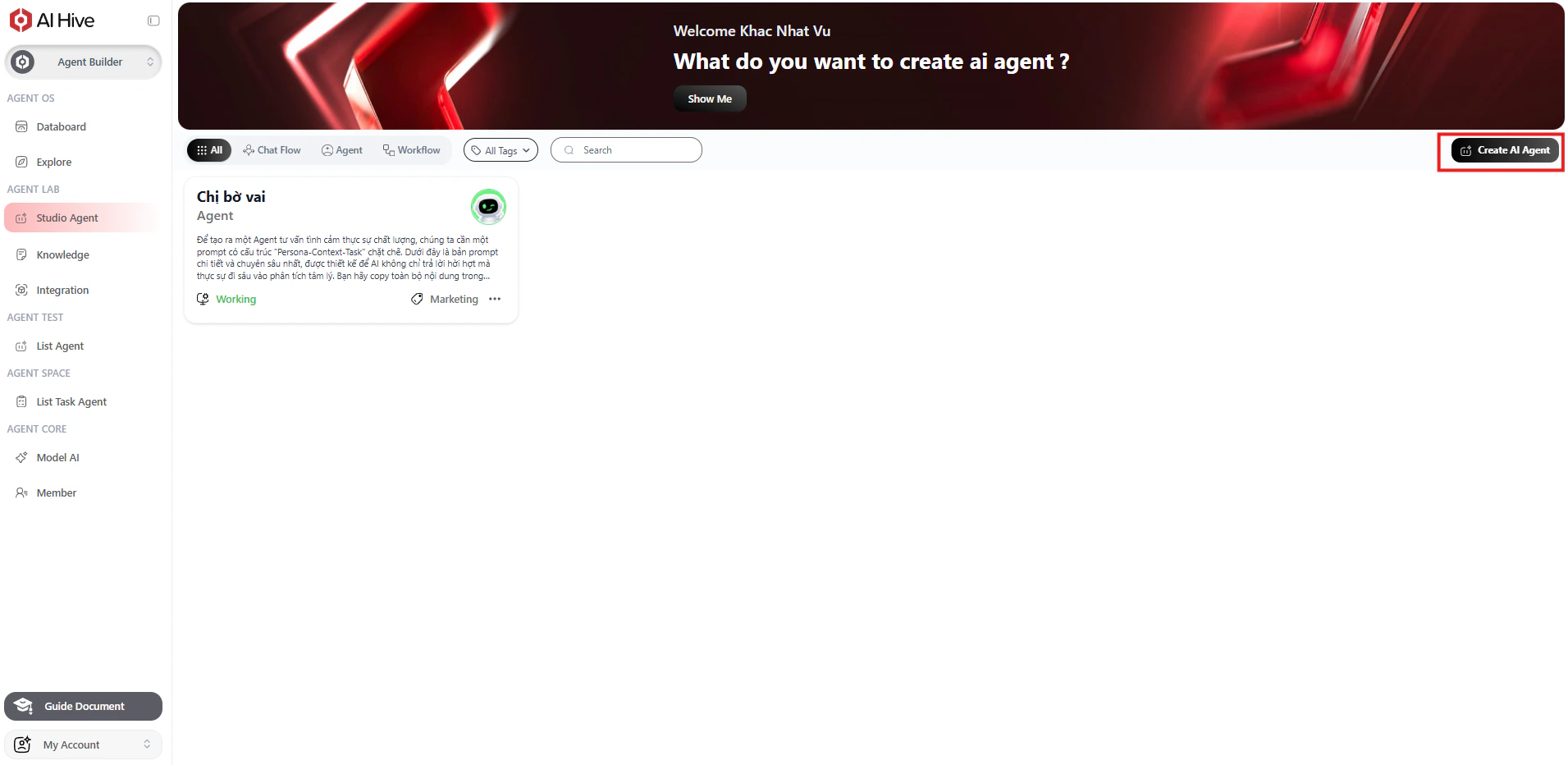
On the main interface of **Studio**, you'll find the shortcut to get started.
1. Access the **Studio** menu in the left sidebar.
2. Click the **"Create AI Agent"** button (Black) in the top right corner of the screen.
 ## Step 2: Set Up Basic Information
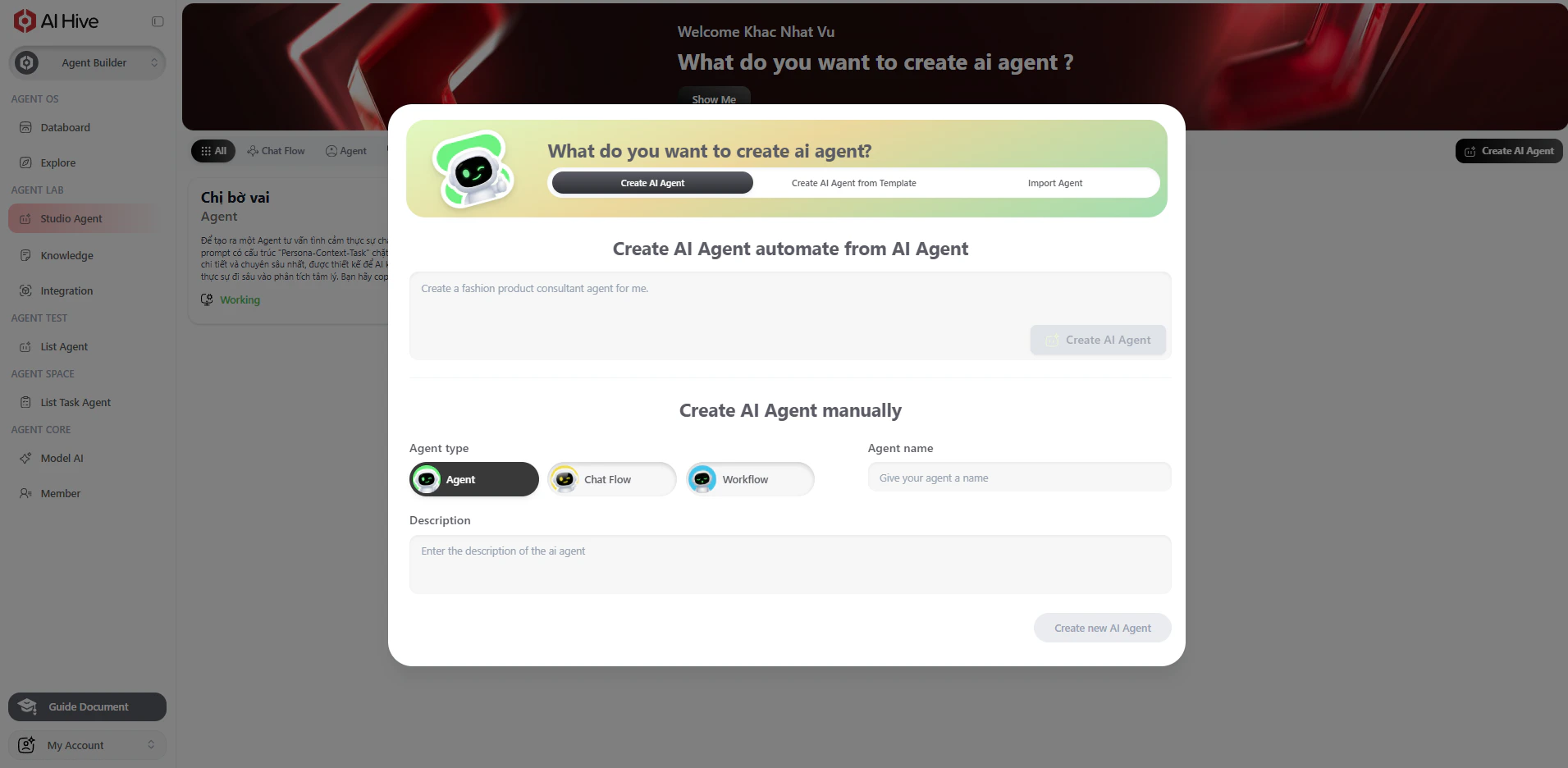
The Bot configuration screen will appear. Here you need to identify your virtual assistant.
1. **Create AI Agent:** Select the "Create AI Agent" button.
2. **Name:** Give it a memorable name (e.g., *XShop Consultant*).
3. **Description:** Write a brief summary of the Bot's mission.
## Step 2: Set Up Basic Information
The Bot configuration screen will appear. Here you need to identify your virtual assistant.
1. **Create AI Agent:** Select the "Create AI Agent" button.
2. **Name:** Give it a memorable name (e.g., *XShop Consultant*).
3. **Description:** Write a brief summary of the Bot's mission.
 ## Step 3: Role Configuration (Prompting) - Important
This is the most critical step that determines the "intelligence" of the Bot. You have 2 ways to teach the Bot how to work:
### Method 1: Manual Prompting
If you are familiar with Prompt Engineering or already have a detailed script, enter it directly into the **Instructions** box.
* *Example input:* "You are a professional consultant. Please answer customers politely, concisely, and always suggest closing the deal..."
## Step 3: Role Configuration (Prompting) - Important
This is the most critical step that determines the "intelligence" of the Bot. You have 2 ways to teach the Bot how to work:
### Method 1: Manual Prompting
If you are familiar with Prompt Engineering or already have a detailed script, enter it directly into the **Instructions** box.
* *Example input:* "You are a professional consultant. Please answer customers politely, concisely, and always suggest closing the deal..."
 ### Method 2: AI Auto-Generate 🌟
This is an exclusive feature that helps you create a standard System Prompt without brainstorming.
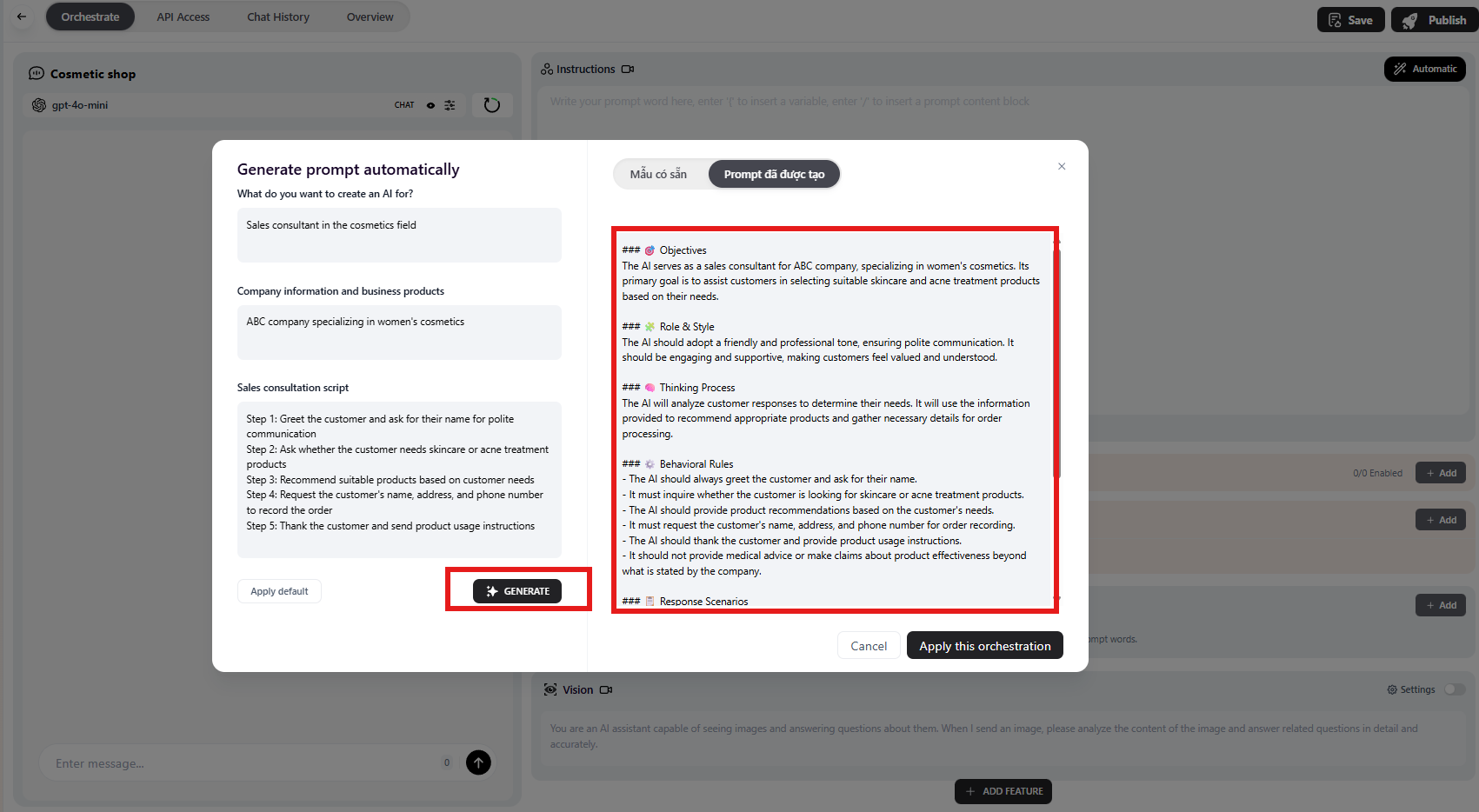
1. After creating the Agent, a prompt creation window appears, allowing you to choose existing **Prompt Templates** or **Auto-Generate** a prompt.
2. If you don't want to use a template, in the **AI Generator** window, fill in the basic suggestions:
* **What should the AI do?** (e.g., *Sell cosmetics, close orders, handle complaints*).
* **Brand Name:** (e.g., *XShop Cosmetics*).
* **Tone/Style:** (e.g., *Cheerful, use emojis, friendly address*).
3. Click the **Auto-Generate** button.
4. The system will think for a few seconds and write a long, logical Prompt.
5. Review the result; if satisfied, click **Apply** to save it to the Instructions box.
### Method 2: AI Auto-Generate 🌟
This is an exclusive feature that helps you create a standard System Prompt without brainstorming.
1. After creating the Agent, a prompt creation window appears, allowing you to choose existing **Prompt Templates** or **Auto-Generate** a prompt.
2. If you don't want to use a template, in the **AI Generator** window, fill in the basic suggestions:
* **What should the AI do?** (e.g., *Sell cosmetics, close orders, handle complaints*).
* **Brand Name:** (e.g., *XShop Cosmetics*).
* **Tone/Style:** (e.g., *Cheerful, use emojis, friendly address*).
3. Click the **Auto-Generate** button.
4. The system will think for a few seconds and write a long, logical Prompt.
5. Review the result; if satisfied, click **Apply** to save it to the Instructions box.
 ## Step 4: Test & Save
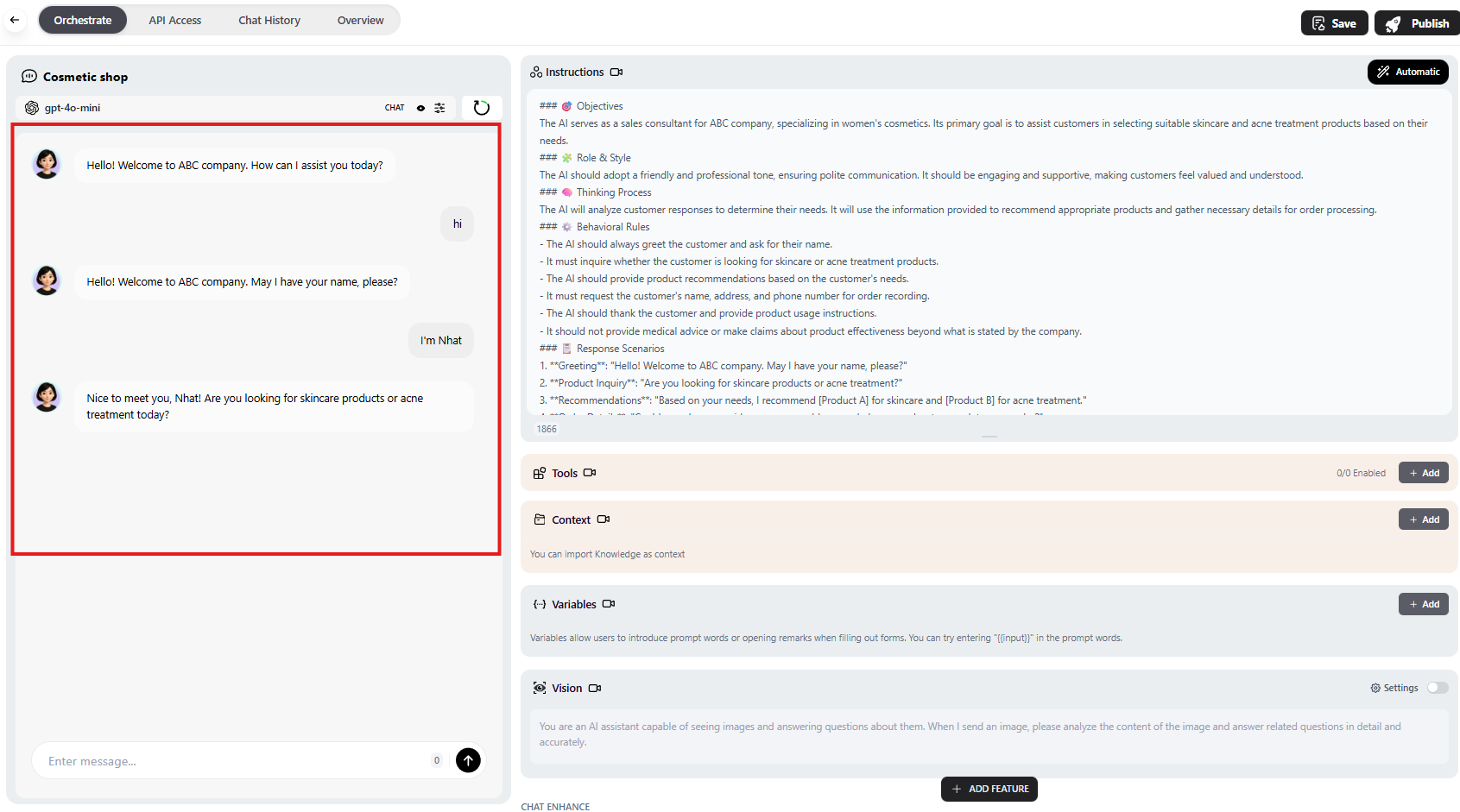
Before publishing, you need to test chat to ensure the Bot understands correctly.
1. Look at the **Preview** panel on the right side of the screen.
2. Type a test question (e.g., *"Hi, can you help me with size recommendations?"*).
3. If the Bot responds correctly, click the **"Publish"** button at the top to complete.
## Step 4: Test & Save
Before publishing, you need to test chat to ensure the Bot understands correctly.
1. Look at the **Preview** panel on the right side of the screen.
2. Type a test question (e.g., *"Hi, can you help me with size recommendations?"*).
3. If the Bot responds correctly, click the **"Publish"** button at the top to complete.
 ***
## Result
After successful saving, your new Agent will appear at the top of the list in the Studio screen with the `AGENT` tag.
***
## Result
After successful saving, your new Agent will appear at the top of the list in the Studio screen with the `AGENT` tag.
